
Beginner guide
Bambu P2S setup: your first week
By Hayden · Last updated: October 16, 2026
Affiliate note: some links below are affiliate links. If you buy through them I may earn a small commission at no extra cost to you. As an Amazon Associate I earn from qualifying purchases. Full disclosure.
So you've got a Bambu Lab P2S. Congratulations! This guide walks you through your first week: what to do from the moment the box arrives to the point where you're confidently printing your own stuff. It's written for complete beginners, based on Bambu Lab's official documentation, and I'll keep it practical.
Always check the official Bambu Lab quick start guide and the Bambu Lab Wiki for your exact model — steps can change with firmware updates, and the official docs are the final word.
1. Before it arrives
- Pick a spot. A sturdy, level table that doesn't wobble. Printers move fast and a shaky surface shows up in your prints. Leave room around it for airflow and for the spool/filament path.
- Check your Wi‑Fi. Make sure the spot has a decent Wi‑Fi signal. According to Bambu Lab's official P2S specs, the P2S supports dual-band Wi‑Fi (2.4 GHz and 5 GHz), so either band works.
- Install the software. Download Bambu Studio (the slicer, for your computer) and the Bambu Handy app (for your phone), and create a Bambu Lab account.
- Have some filament ready. A sample usually comes in the box, but you'll want a full spool of basic PLA.
2. Unboxing
- Keep the box and foam for a while, in case you ever need to return, ship, or move the printer.
- Remove every piece of shipping restraint. Printers ship with screws, foam blocks, ties or tape to stop parts moving in transit. Follow the quick start guide carefully — a forgotten restraint is the #1 cause of scary noises on the first power-up.
- Find the accessories. You'll usually get a tool kit, spare parts, a sample of filament, and the build plate. Put the small parts in a labelled bag so they don't vanish.
- Look it over. Check for any shipping damage before you power on, and take photos if anything looks wrong.
3. Setup, step by step
- Follow the printed quick start guide for any assembly and restraint removal. Don't skip ahead.
- Install the build plate. Make sure it sits flat and is clean. Avoid touching the print surface with your fingers — skin oil is a common reason prints don't stick.
- Power on and run the on-screen setup. Pick your language and region, connect to Wi‑Fi, and bind the printer to your account using the Bambu Handy app.
- Update the firmware if the printer or app offers an update. Updates often fix bugs and improve print quality.
- Let it run its calibration. The first-time calibration can take a while and the printer will make some odd noises and vibrations. That's normal. Don't interrupt it.
- Load filament. Use the printer's load-filament option and follow the prompts. Make sure the spool can turn freely and the filament end is cut cleanly at an angle.
- Connect Bambu Studio. Log into the same account on your computer and check the printer shows up as online.
4. Your first prints
Start with something that's already known to print well, so if something goes wrong you know it's the setup, not the model.
- Use the built-in or official sample models first. They're tuned for the machine.
- Then try MakerWorld (Bambu's model site). Pick popular, highly rated, small models with a print profile for your printer.
- Watch the first layer. It's the most important layer. Lines should be flat and slightly squished together, not round strings or gaps.
- Stick to PLA for week one. It's the most forgiving material. Use the matching filament profile in Bambu Studio.
- Print something useful. A cable clip, a hook, a box — nothing builds confidence like using something you printed.
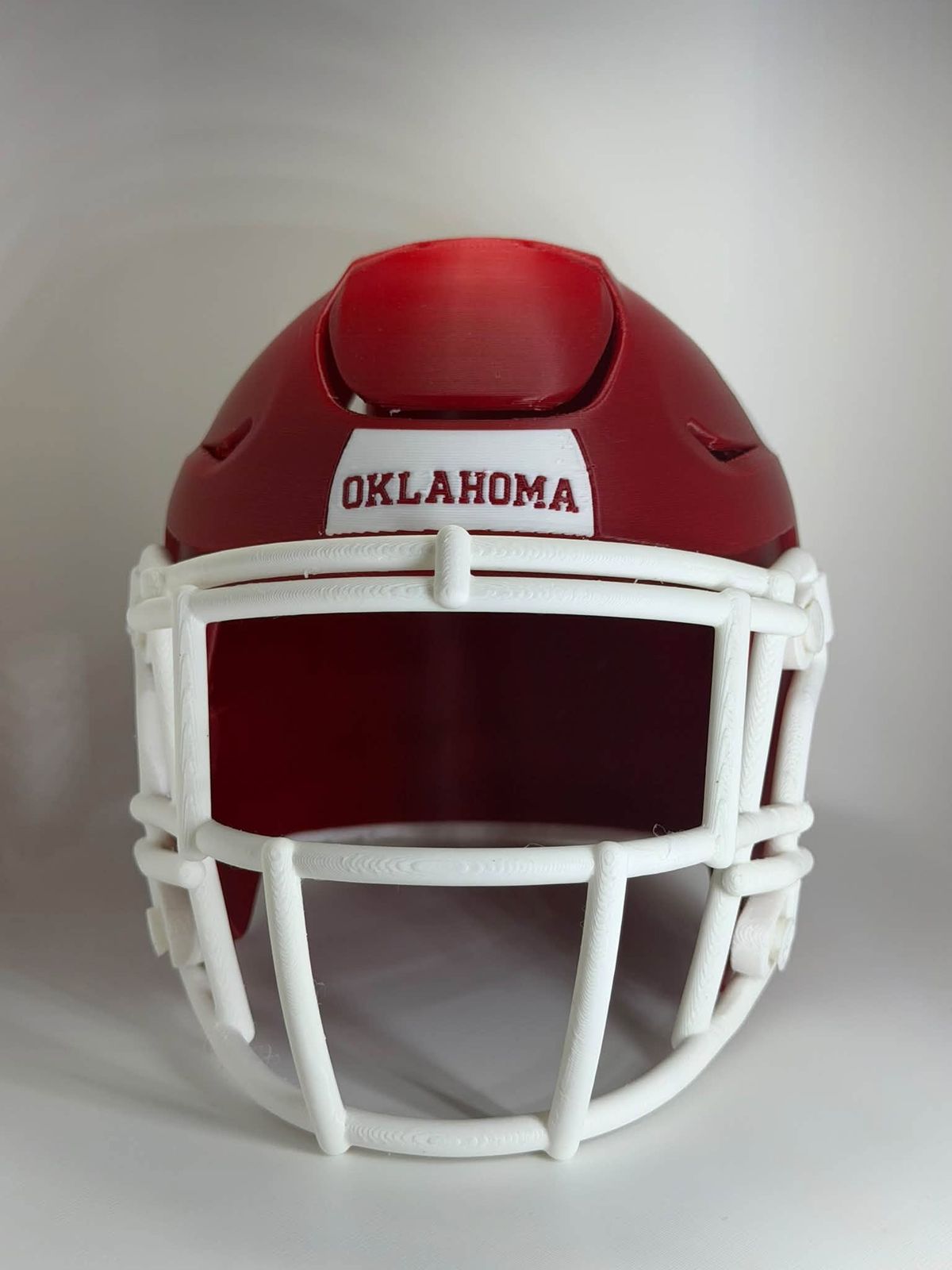
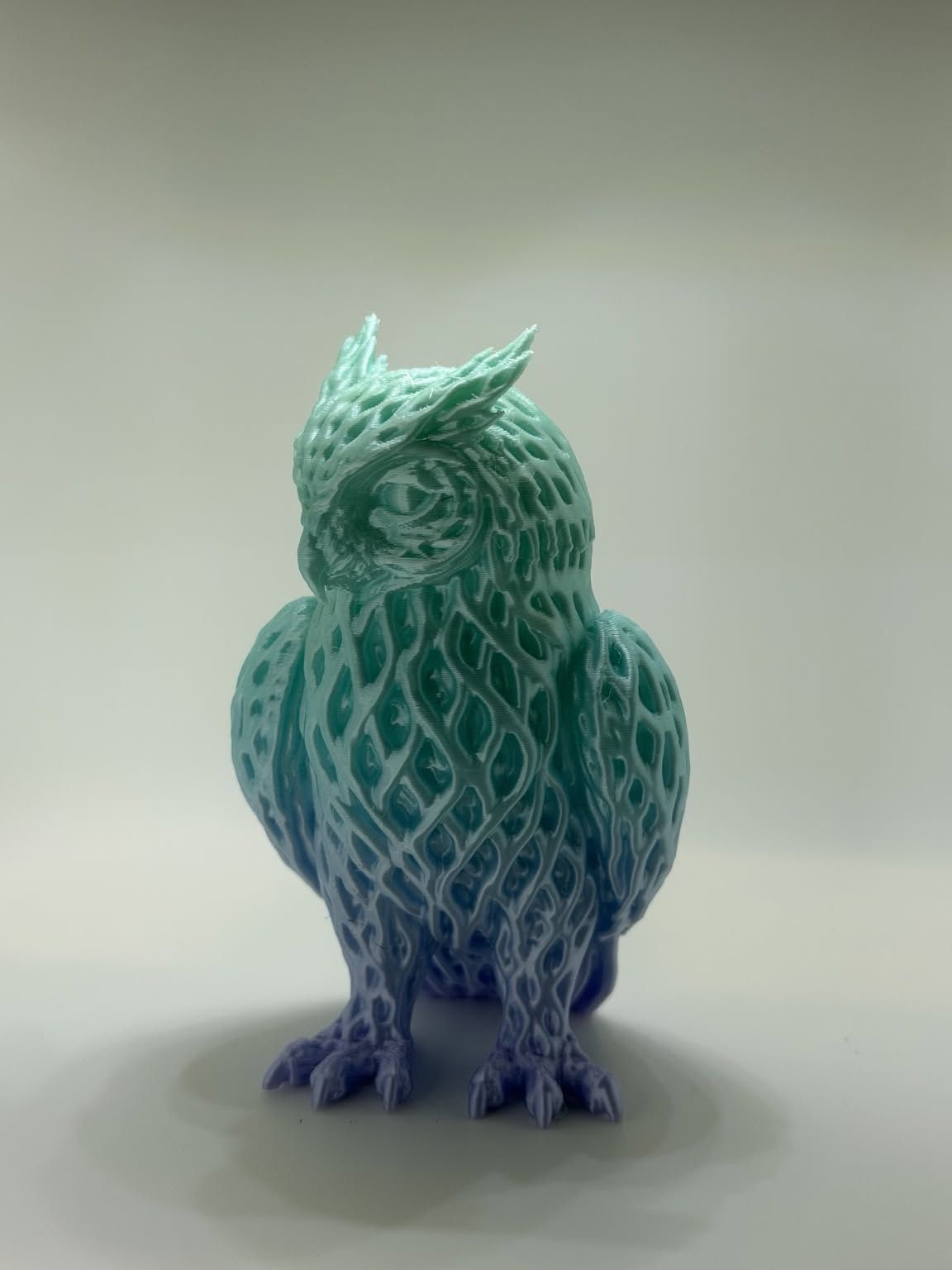
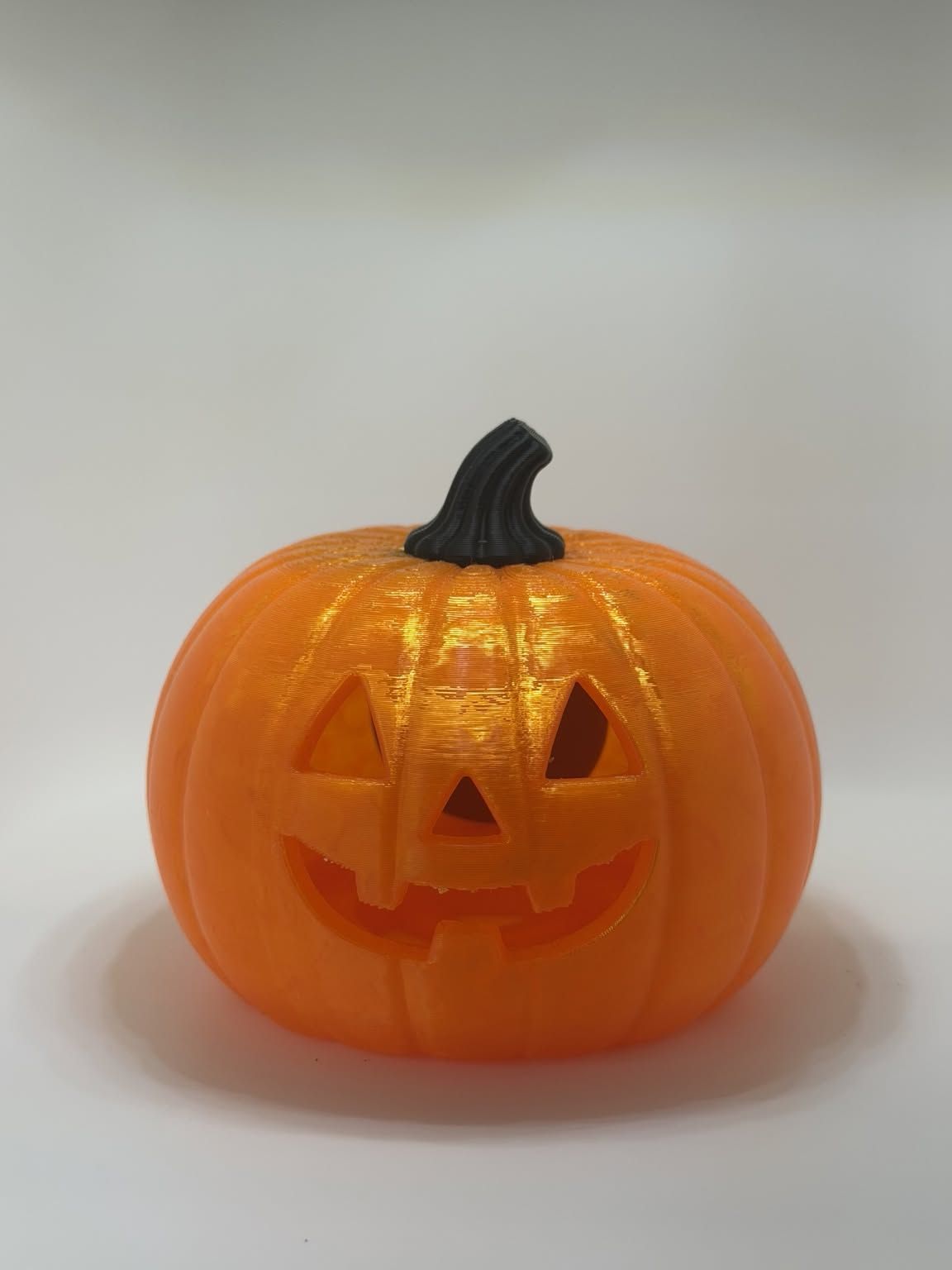
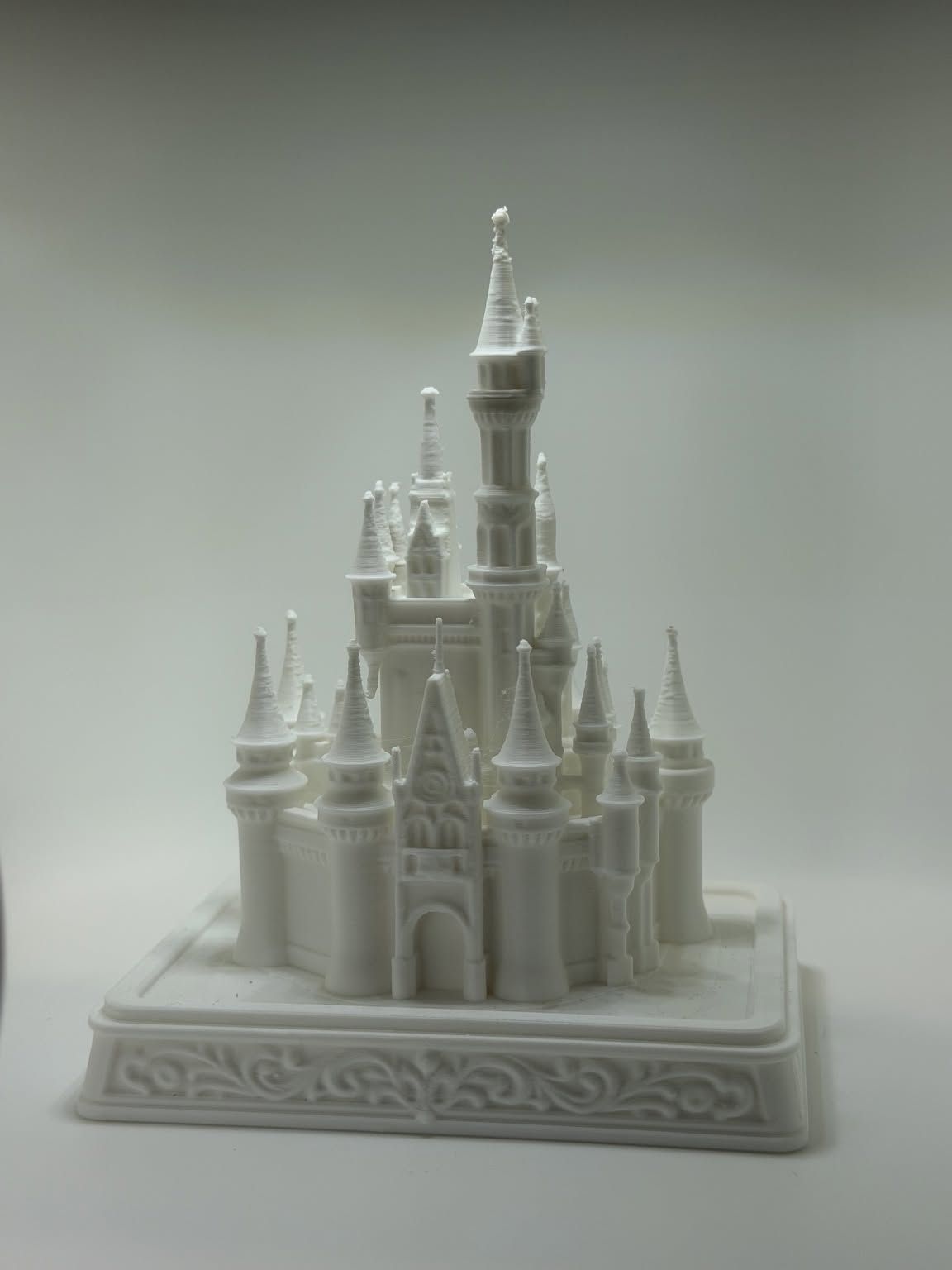
Example prints from my P2S

5. Common beginner mistakes
- Dirty build plate. Fingerprints and dust ruin adhesion. Wash the plate with warm water and a drop of dish soap, rinse, and dry it (check the care instructions for your plate type).
- Wrong plate selected in the slicer. Bambu Studio asks which plate type you're using. A mismatch can cause poor adhesion.
- Wrong filament profile. Printing PETG with a PLA profile (or vice versa) gives bad results. Match the profile to what's loaded.
- Wet filament. Filament absorbs moisture from the air. Signs: popping or hissing, stringing, rough surfaces. Store spools in sealed bags or boxes with desiccant, and dry them if needed.
- Skipping supports or brims. Overhangs need supports; tall, thin or small-footprint parts may need a brim. Bambu Studio can add these for you.
- Printing too big too soon. Your first long print shouldn't be a 20-hour masterpiece. Build up from small, quick prints.
- Not checking in. Use the app to keep an eye on prints, especially early on. Never leave a brand-new printer running unattended for long periods until you trust your setup.
- Tangled spools. Don't let the filament end go loose when you remove a spool — tuck it in the spool's holes so it can't cross over and tangle.
- Ignoring maintenance. Keep the printer clean and follow the maintenance schedule on the Bambu Lab Wiki.
6. A simple first-week plan
- Day 1: Unbox, set up, update firmware, run calibration, print a sample model.
- Day 2: Print 2–3 small popular models from MakerWorld. Watch the first layers.
- Day 3: Learn the basics of Bambu Studio: moving, scaling and rotating models, adding supports.
- Day 4: Print something useful for your home.
- Day 5: Try a different colour or a second PLA brand. Notice the differences.
- Day 6: Clean the plate, tidy your filament storage, read the maintenance pages on the wiki.
- Day 7: Try a slightly longer print (a few hours) you're excited about.
7. What to buy (and what can wait)
Worth getting early:
- A couple of spools of good PLA
- Sealable storage with desiccant
- Flush cutters for trimming filament and supports
Can wait: exotic materials, extra build plates and upgrades. Learn the machine first, then buy for problems you actually have.
Got questions? Want me to cover something next? Get in touch. And if you'd like a ready-made accessory, check out the shop.